
free
Google Meet
Manage, schedule and launch Google Meet calls from Pipedrive to streamline your sales communication.
Built by Pipedrive
(4262)
503 reviews
Checklynx AML Screening
by Checklynx
AML screening, directly in Pipedrive
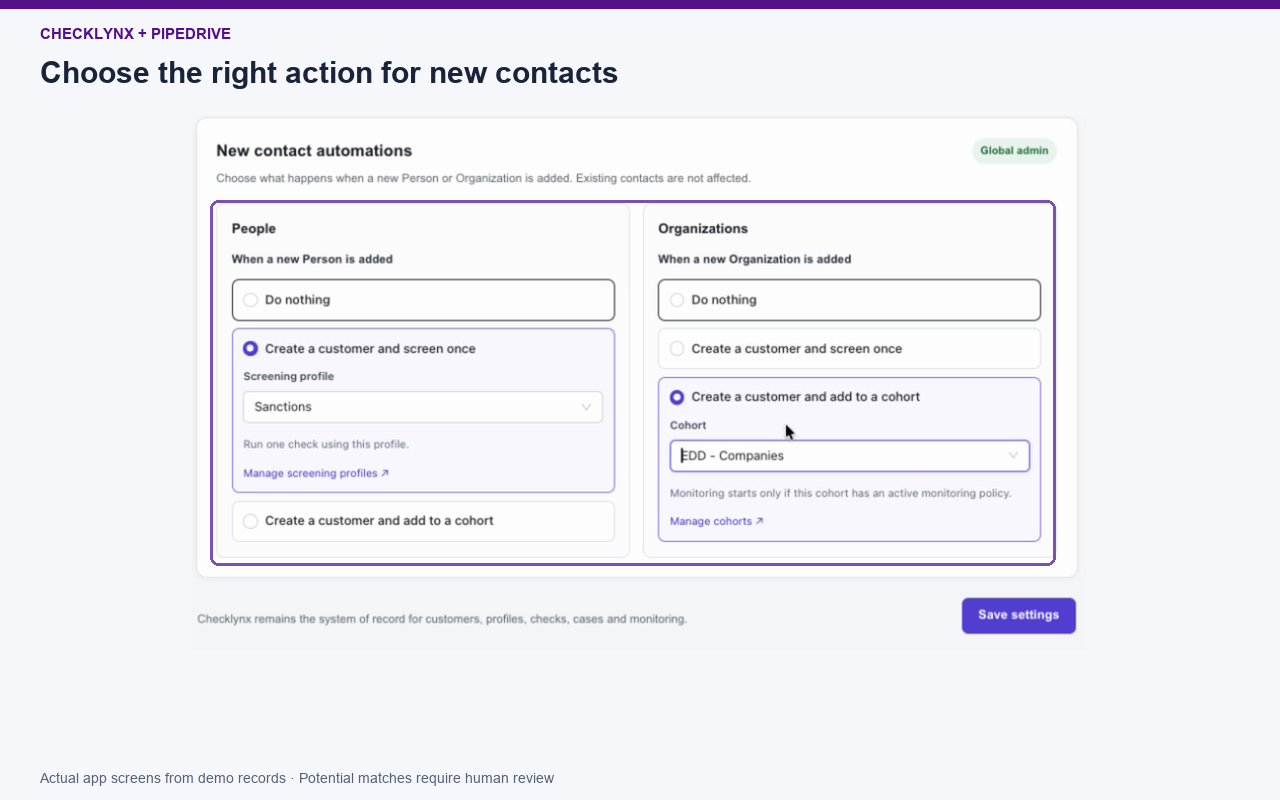
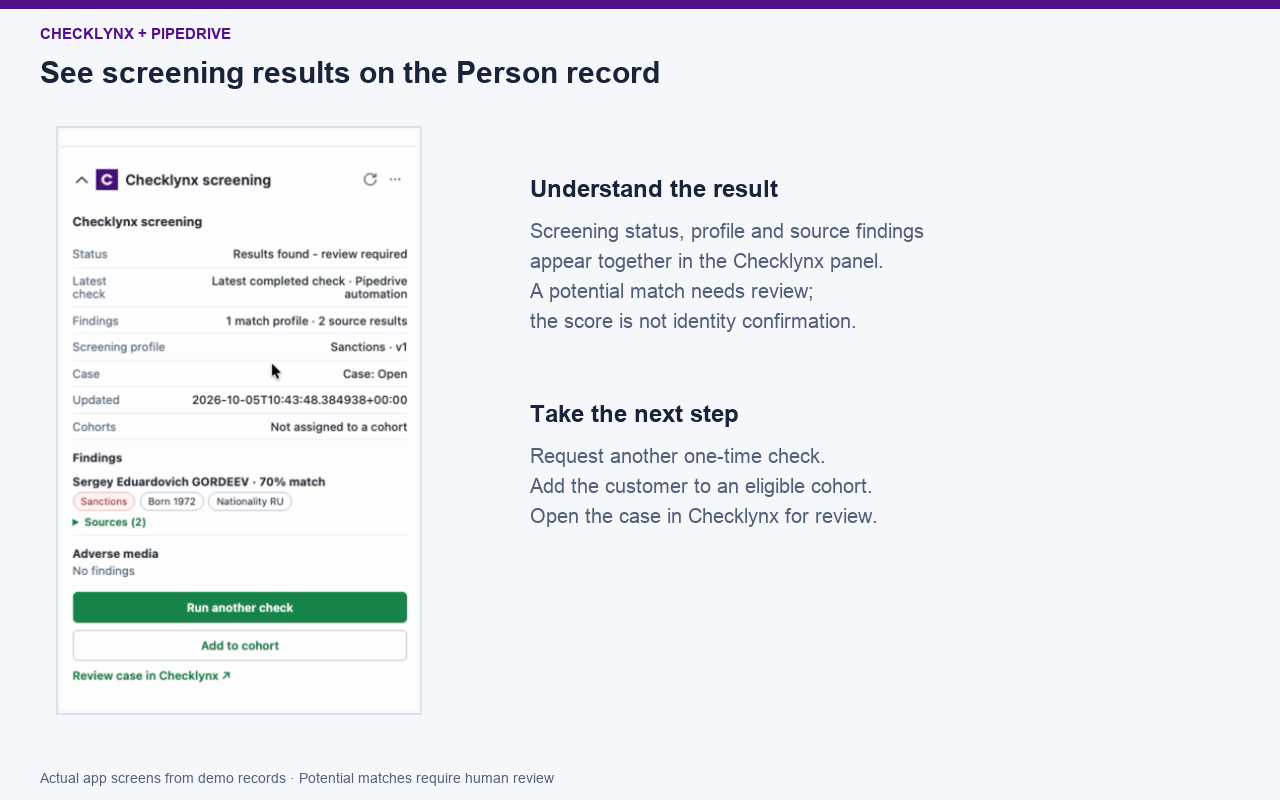
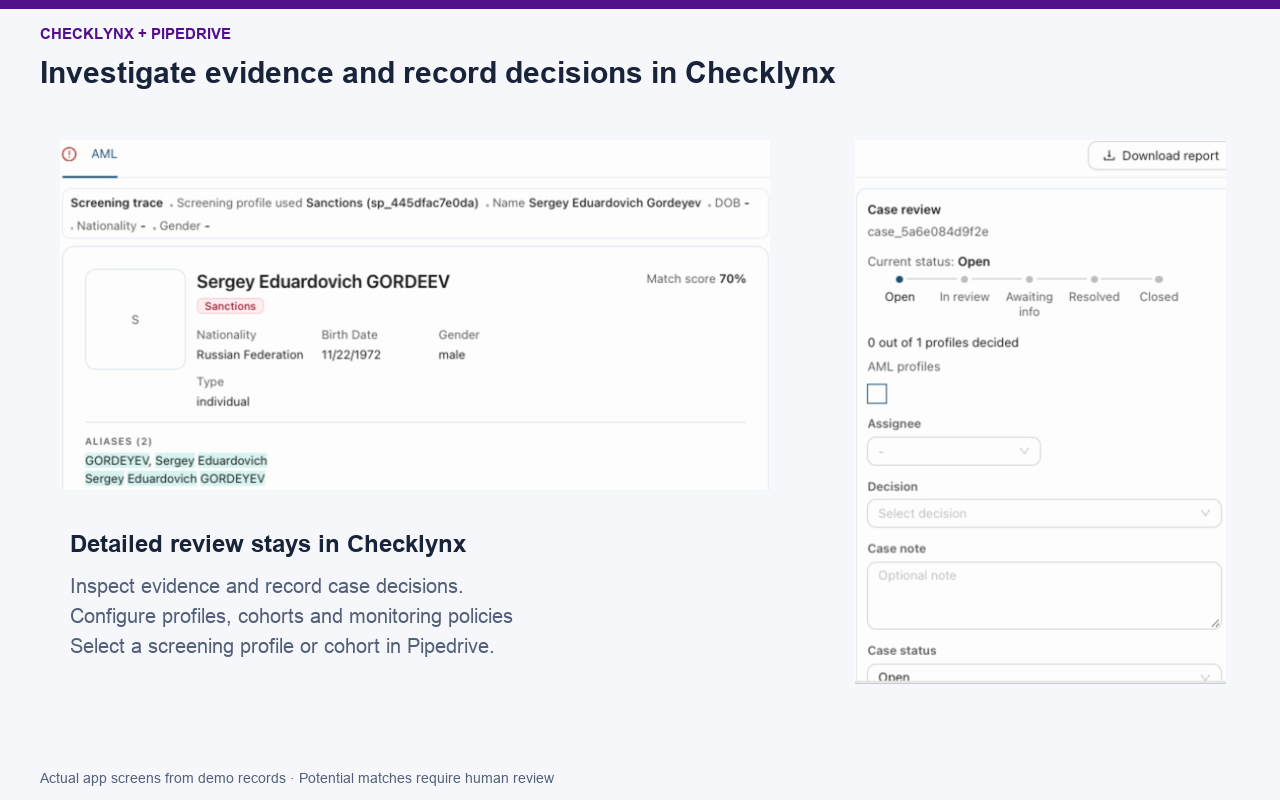
Check People and Organizations against the sanctions and PEP sources selected in your Checklynx screening profile. See potential matches and supporting sources directly on the contact record, so your team knows what needs attention. Automate checks for new contacts Choose separate actions for People and Organizations: leave them unchanged, create a Checklynx customer and screen once, or add the customer to a cohort. Cohorts with an active monitoring policy enable ongoing monitoring automatically. Move from findings to review View screening status, findings and cohort membership in Pipedrive. Run another check or open the customer and related case in Checklynx to investigate potential matches and record review decisions. Configure your workflow in Checklynx Manage screening profiles, cohorts and monitoring policies in Checklynx, then select which profile or cohort your Pipedrive automation uses.

Panels
Instantly see and interact with Checklynx AML Screening as you dive into the details of your deals/contacts in Pipedrive.
Checklynx screening
Locations:person details
Create and screen customers, view screening results and cohort membership, add customers to eligible cohorts, and open cases in Checklynx.
Checklynx screening
Locations:organization details
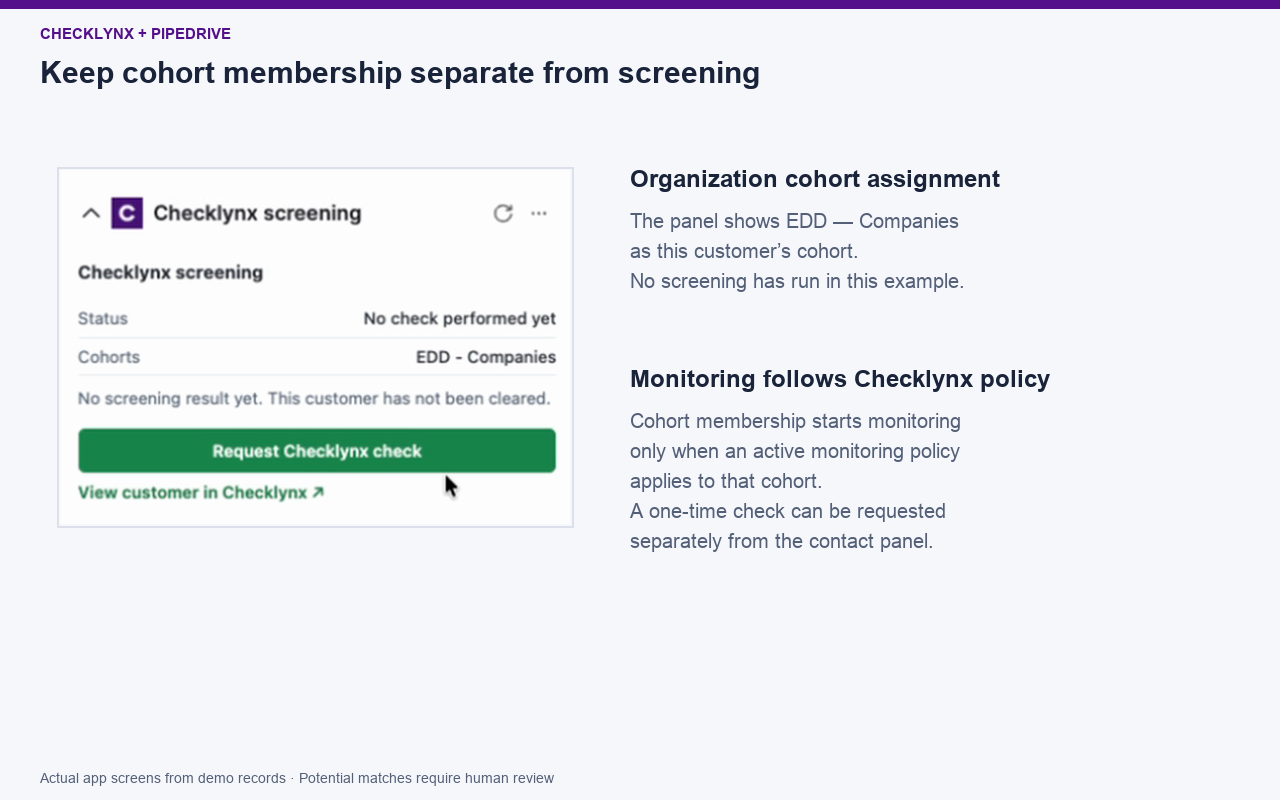
Create and screen customers, view screening results and cohort membership, add customers to eligible cohorts, and open cases in Checklynx.
You need a Checklynx account and workspace. Already a customer? Sign in to the workspace you want to connect. New to Checklynx? Create your account at https://app.checklynx.com before starting installation. For setup help, use the support contact on this listing.
Install Checklynx AML Screening and confirm the correct Pipedrive company. Approve basic account information, read-only Contacts access and webhook management. You do not need to copy a Pipedrive API token or a Checklynx API key.
On the Checklynx connection screen, click Connect Pipedrive. When connected, click Configure in Pipedrive to return to the app settings.
In Pipedrive, open Tools and apps > Installed apps > Checklynx AML Screening > Settings. Set separate rules for People and Organizations: do nothing; create a customer and screen once using a screening profile; or create a customer and add it to a cohort. Save settings. These rules apply to newly added contacts, not existing contacts.
Configure screening profiles, cohorts and ongoing monitoring policies in Checklynx. Adding a customer to a cohort starts monitoring only if an active policy applies to that cohort; membership alone does not run a check.
Open a Person or Organization to view the Checklynx panel. Request a check or add the customer to an eligible cohort. Open Checklynx to investigate findings and record case decisions.
If you’re interested in this app, you might also like:


Use our powerful API to build awesome apps for either your company or for all Pipedrive users.
Build an app