
free
Google Meet
Manage, schedule and launch Google Meet calls from Pipedrive to streamline your sales communication.
Built by Pipedrive
(4169)
497 reviews
xCally for Pipedrive
by xCally
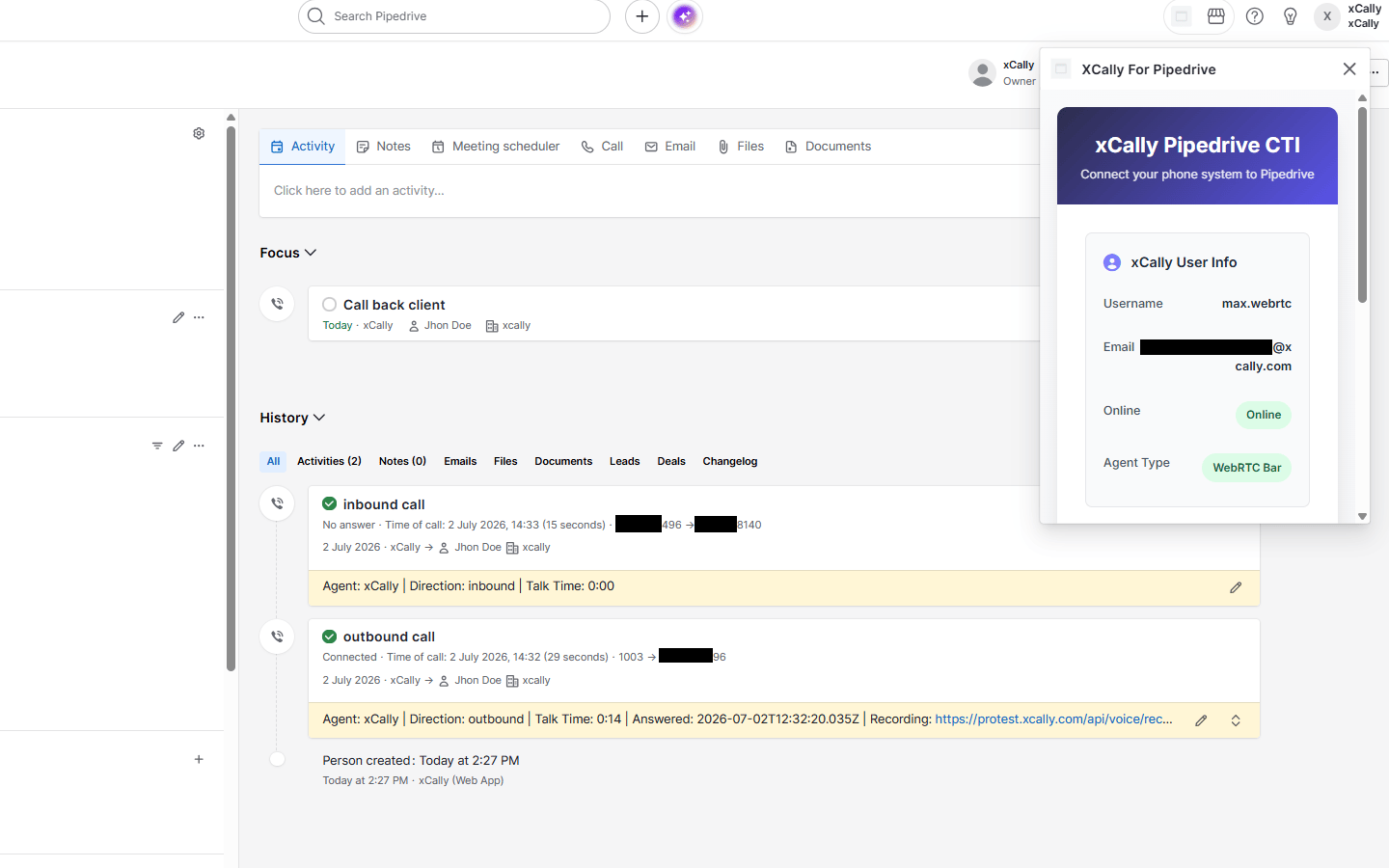
Connect xCally telephony with Pipedrive and manage every call without leaving your CRM.
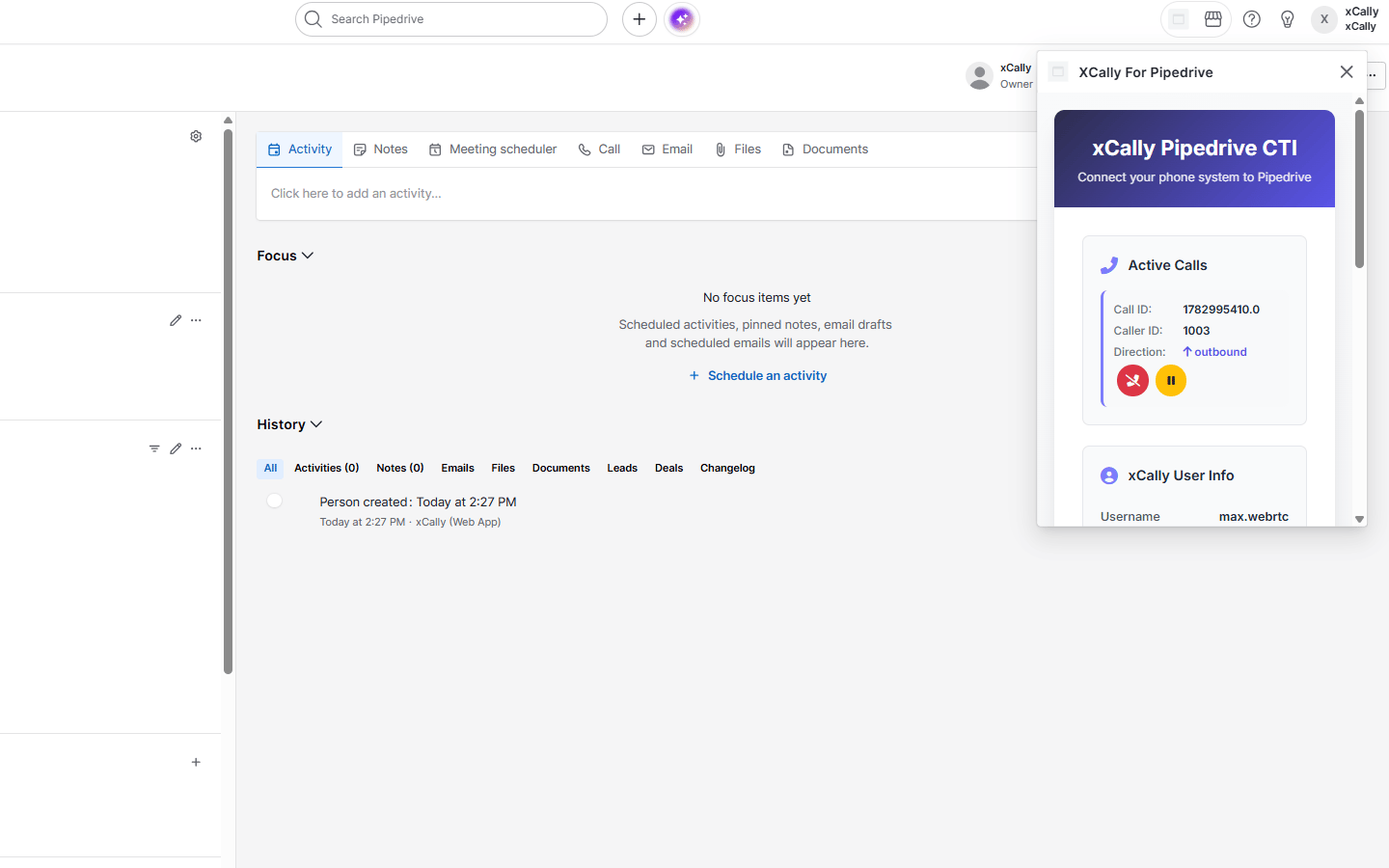
This integration delivers a custom floating CTI window inside Pipedrive. After signing in with xCally credentials, agents can place and receive calls, use click-to-call from phone numbers in Pipedrive, and control active calls in real time with answer, hang up, and hold/unhold.
When a call ends, it is logged automatically to Pipedrive Call Logs with outcome, direction, talk time, agent details, optional recording link, and links to the matching person and open deal. Phone numbers can be matched to existing contacts or used to create new ones, and xCally agents are mapped to the correct Pipedrive user.
Smart workflow rules save manual work: missed inbound calls can create a follow-up callback activity, and conversations above 60 minutes are tagged in the call note so meaningful interactions are easy to spot.
The app supports xCally WebRTC WebBar and classic Phonebar environments, making it a fit for sales and support teams that rely on xCally and want click-to-call, automatic logging, and a seamless calling workflow inside Pipedrive.
Requires an xCally telephony environment and a self-hosted app instance configured for your organization.

Quick access
Easily access xCally for Pipedrive and their customized floating window anywhere in Pipedrive via the top bar.
xCally for Pipedrive
Locations:Top barPhone numbers
You can use the floating window integration to manage xCally platform agents calls and automatically log the calls.
Getting started
This app connects your xCally phone system to Pipedrive. You need an xCally agent account from your organization.
Install the app Install from the Pipedrive Marketplace and click Allow and install when prompted.
Set as your calling app Go to Settings → Tools and apps → Phone calls and select this app as your default calling app.
Open the CTI window Click the Apps icon in the top bar, or click any phone number on a person, deal, or lead.
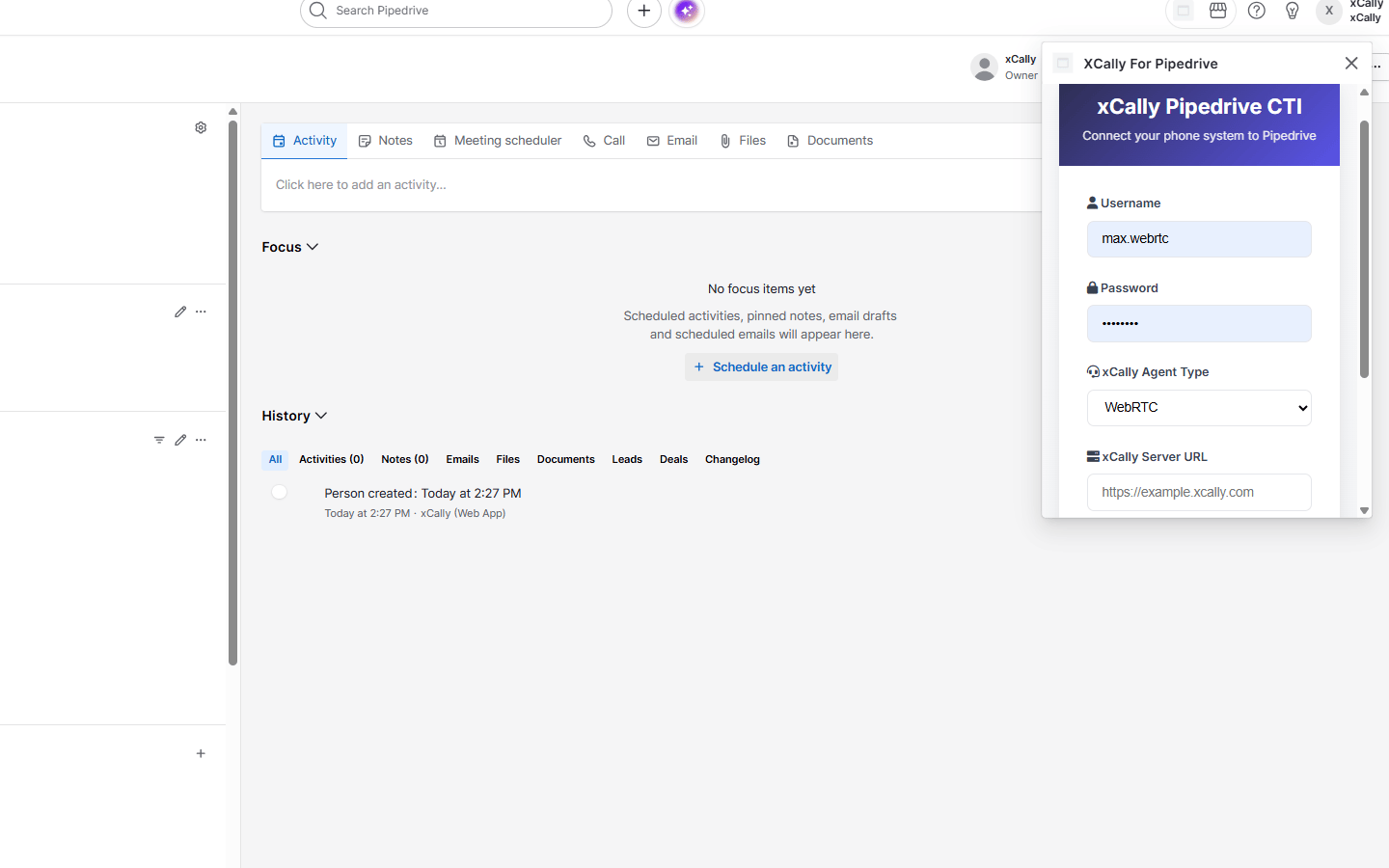
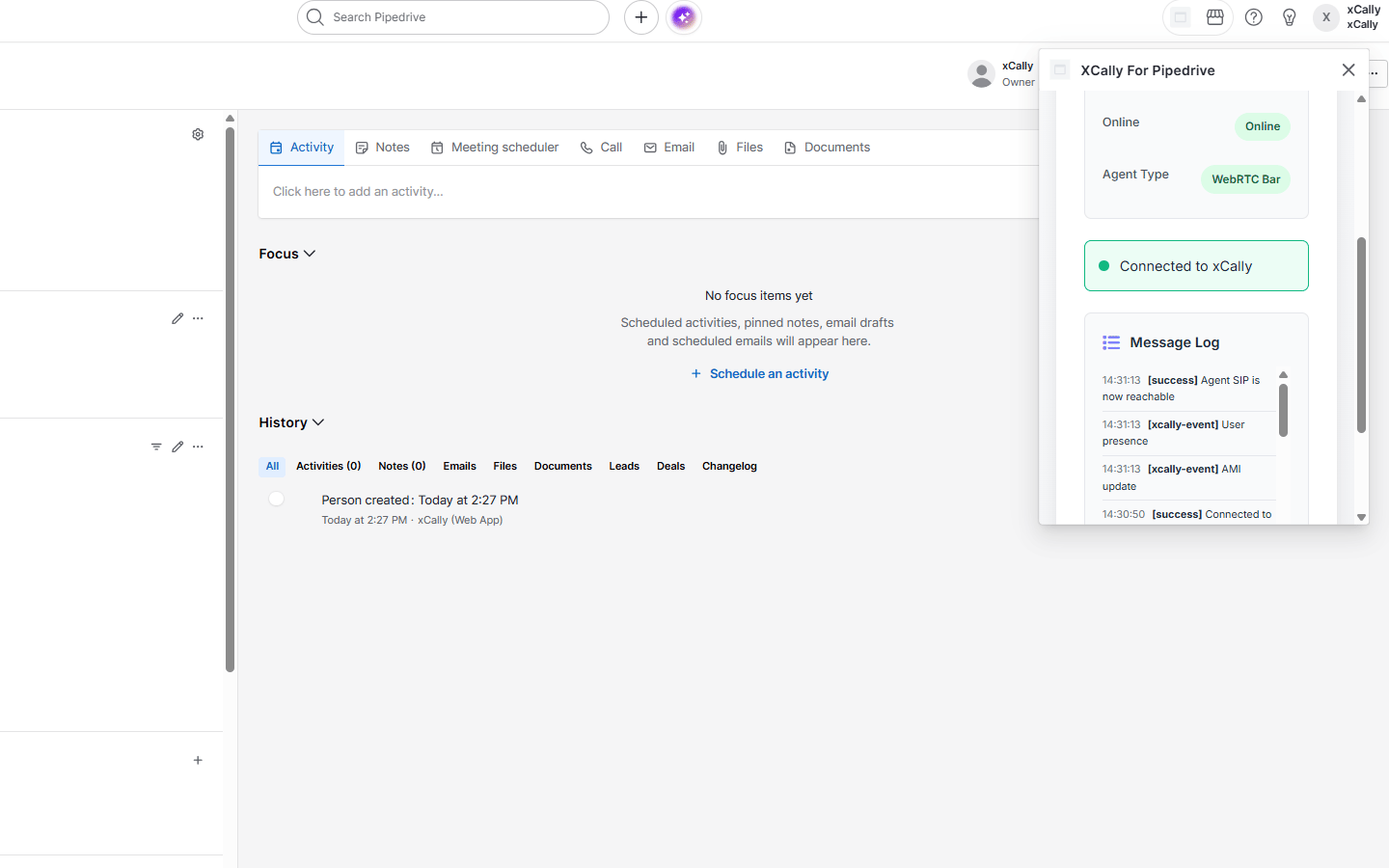
Sign in to xCally In the floating window, enter your xCally Server URL, username, password, and agent type (WebRTC or Phonebar, as provided by your admin). Wait until the status shows Connected to xCally.
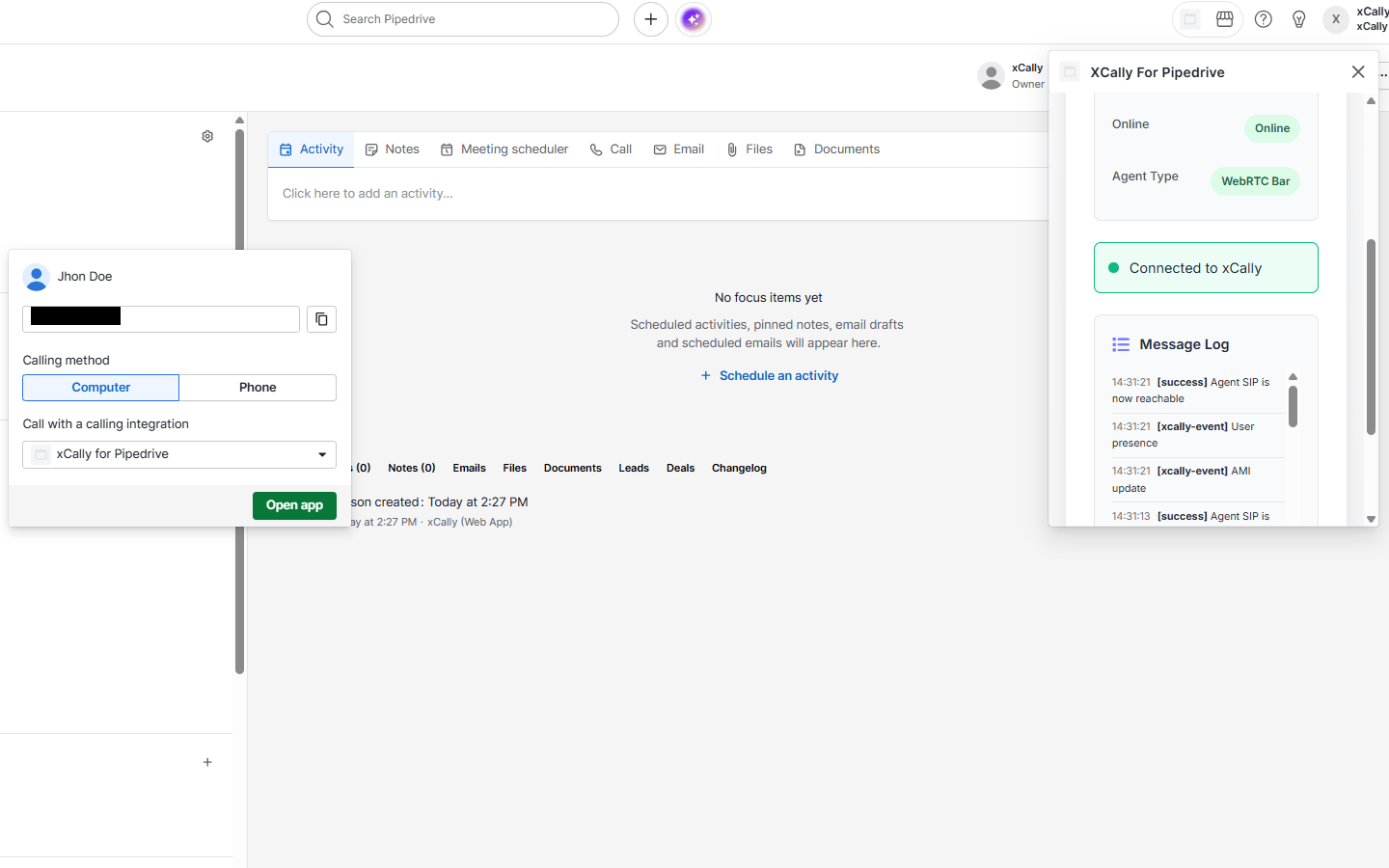
Make and receive calls Click a phone number in Pipedrive to dial outbound. Incoming calls appear in the floating window—answer, hold, and hang up from there.
Call logging When a call ends, it is saved to Pipedrive Call Logs with outcome, talk time, linked contact, and optional recording. Missed inbound calls may create a follow-up activity automatically.
Tips Keep the floating window open while working in Pipedrive. If click-to-call does not work, check your default calling app setting and xCally connection. Contact your xCally or Pipedrive admin for server URL, credentials, or access issues.
If you’re interested in this app, you might also like:


Use our powerful API to build awesome apps for either your company or for all Pipedrive users.
Build an app