
free
CallHippo
Effortlessly Manage Sales with AI-Enhanced CallHippo and Pipedrive Integration, Featuring AI-powered Analytics, Click-to-Call, and Task Automation.
(414)
384 reviews
Tables
by Tables
Attract new leads, Qualify my leads, Automate my pipeline and data, Other use cases

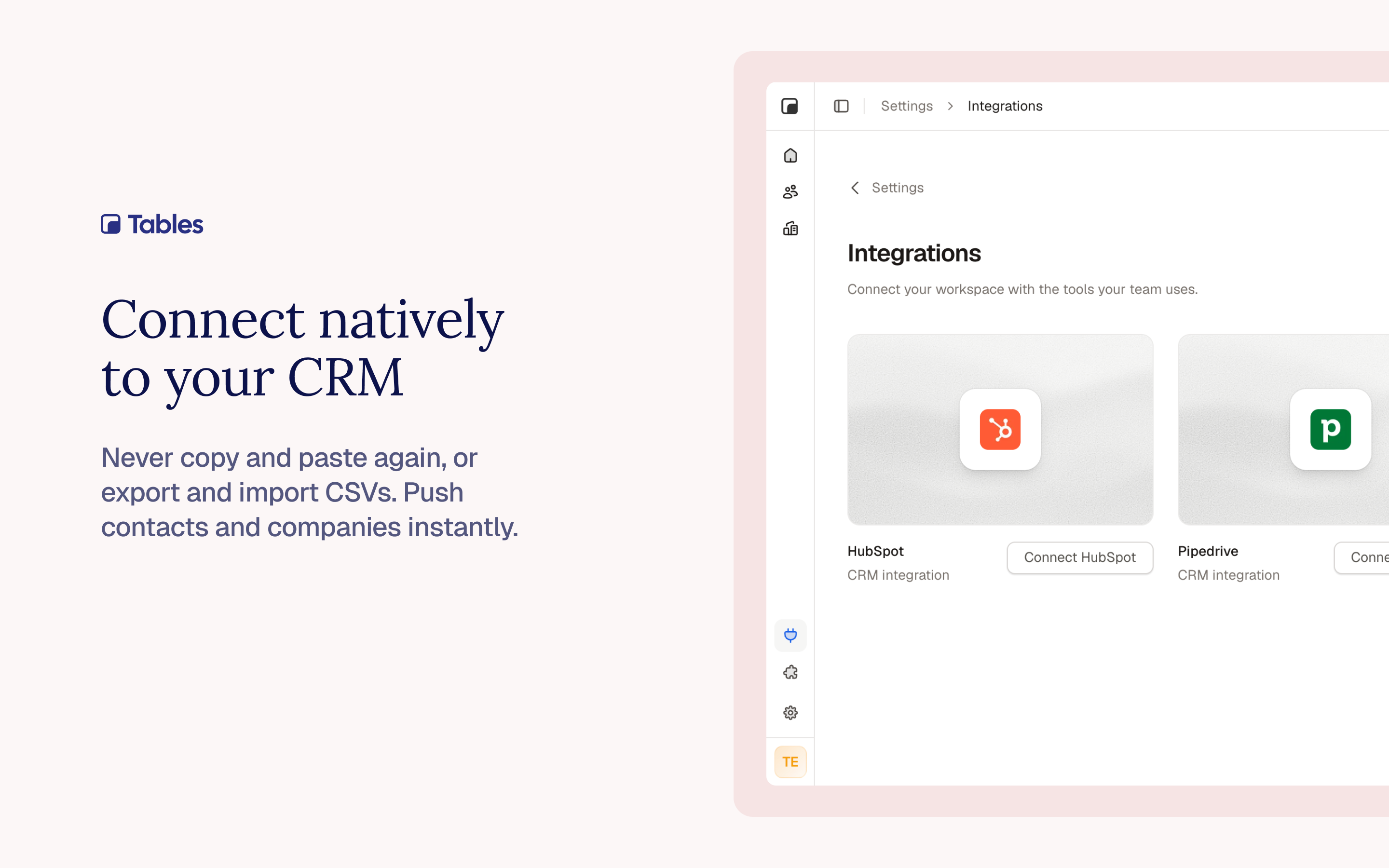
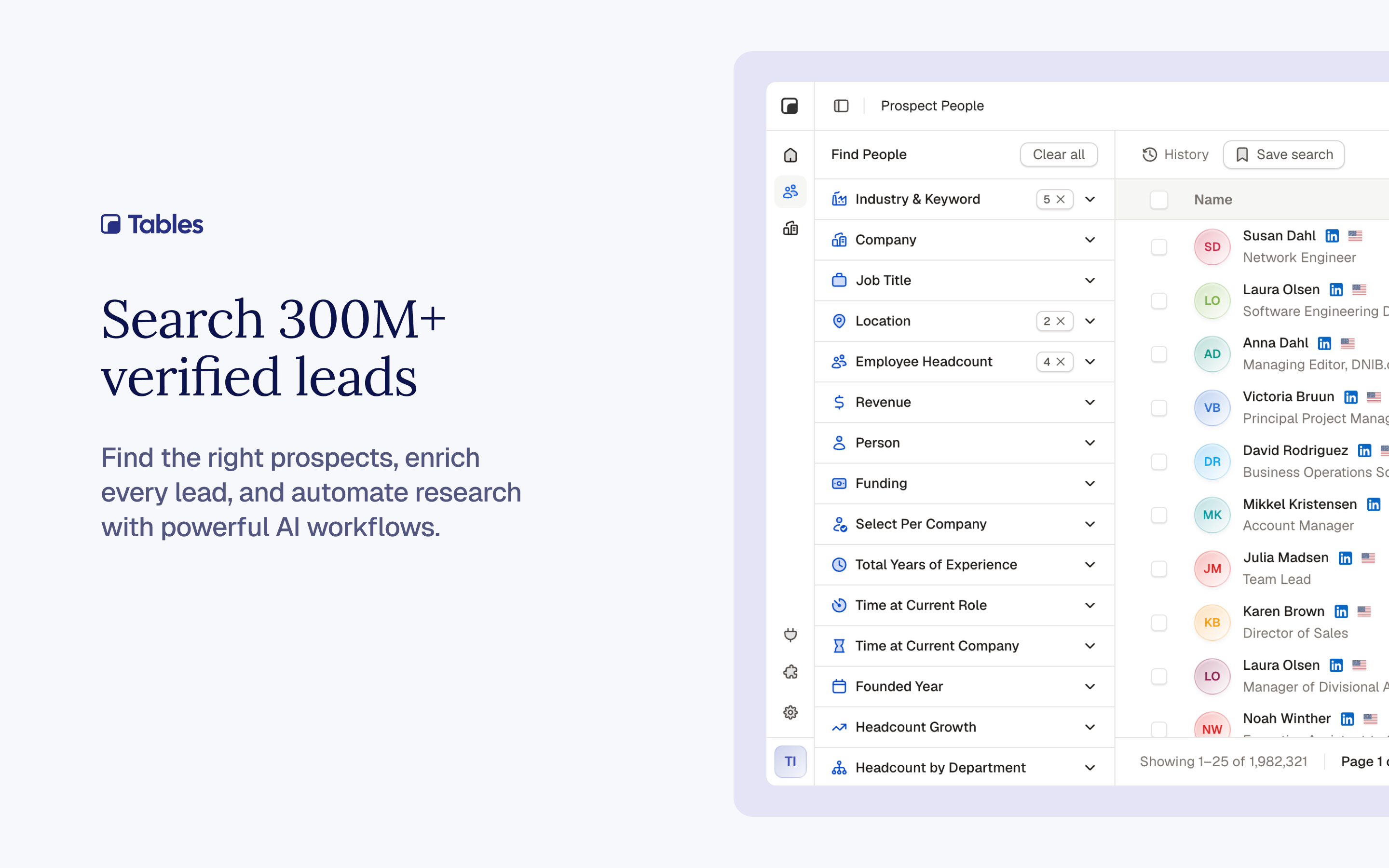

Tables is a B2B contact database that fills and enriches your Pipedrive CRM.
Search over 300 million people and companies, find verified work emails and phone numbers, then send them straight into Pipedrive as persons and organizations. No copying between tabs.
Connect your Pipedrive account once from the integrations page in Tables. Build a list, pick which fields go into which Pipedrive fields, and export. Tables suggests defaults, so you only change what you want. Your own custom fields work too.
Tables also runs AI enrichment. Ask a question about each person or company, such as what a business does or whether it fits your market, and write the answer into any Pipedrive field.
Exports run in the background and show you what worked and what did not. People are matched on email address and organizations on name, so a repeat export updates the same record instead of creating a duplicate.
You will need a Tables account on a paid plan.
Step 1: Create a Tables account Go to tables.so and sign up with your work email. You will need a paid plan to export to Pipedrive.
Step 2: Build a list Search for the people or companies you want using filters like job title, industry, location and company size. Save the results as a list. Tables finds verified work emails and phone numbers for you.
Step 3: Connect Pipedrive In Tables, open Integrations in the left sidebar and click Connect Pipedrive. You will be sent to Pipedrive to approve the connection, then returned to Tables. You need permission to install apps in your Pipedrive account.
Note that Tables connects to one CRM at a time. If you already have another CRM connected, disconnect it first.
Step 4: Check your field mappings On the same page, open Pipedrive Field Mappings. This decides which Tables field goes into which Pipedrive field. Tables fills in sensible defaults, so you only change what you want. Your own custom fields appear in the list too.
Step 5: Export your list Open your list, click Sync to CRM, and choose whether to export people, organizations, or both. Review the preview, then click Start sync.
Removing the integration Open Integrations in Tables and click Disconnect. This removes your credentials and field mappings from Tables. Records already in Pipedrive are not affected.
If you’re interested in this app, you might also like:


Use our powerful API to build awesome apps for either your company or for all Pipedrive users.
Build an app