
free
Google Meet
Manage, schedule and launch Google Meet calls from Pipedrive to streamline your sales communication.
Built by Pipedrive
(4191)
498 reviews
AloTech Softphone CTI
by AloTech
Communicate with leads, Manage my projects, Manage my accounts, Support my customers
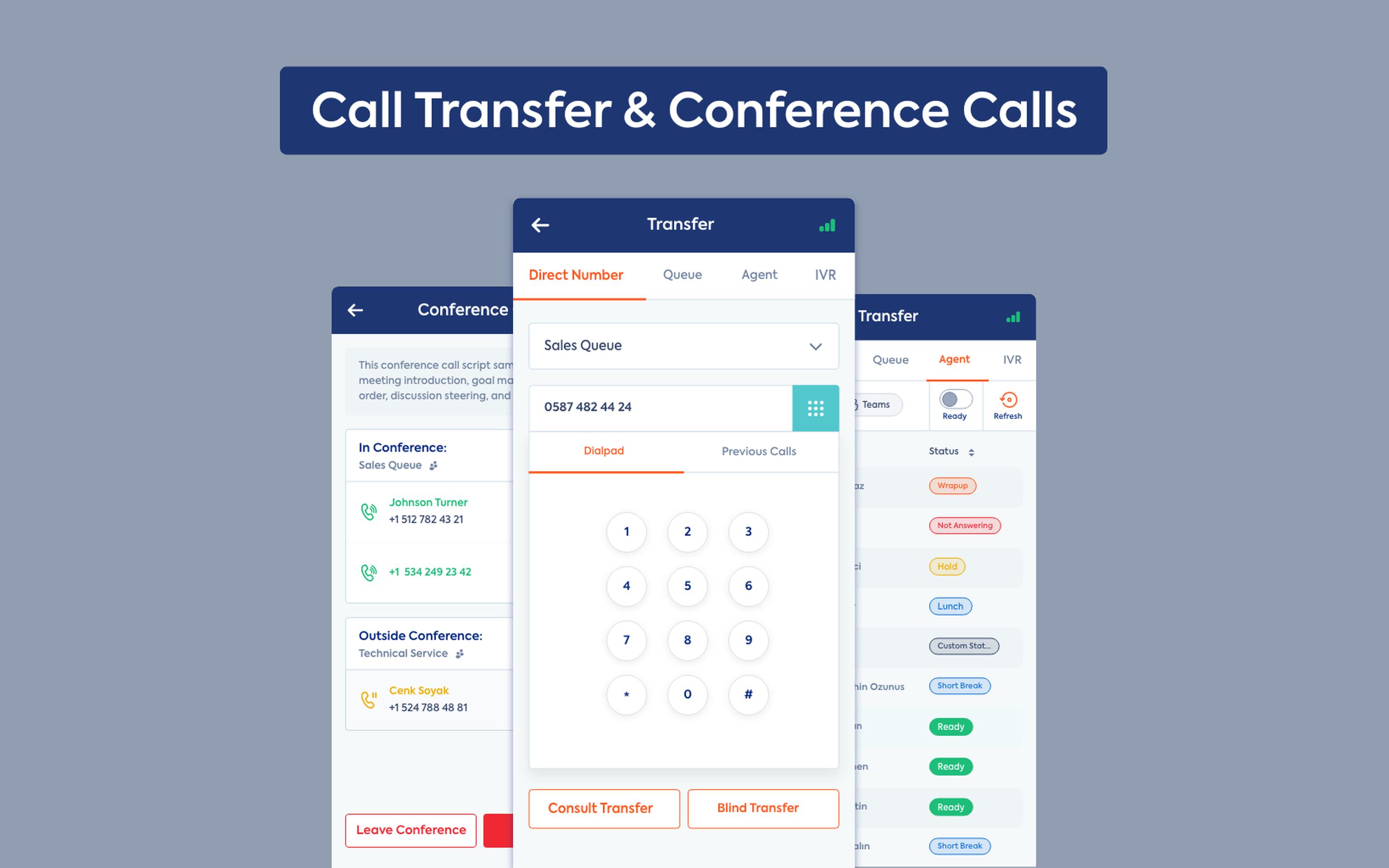
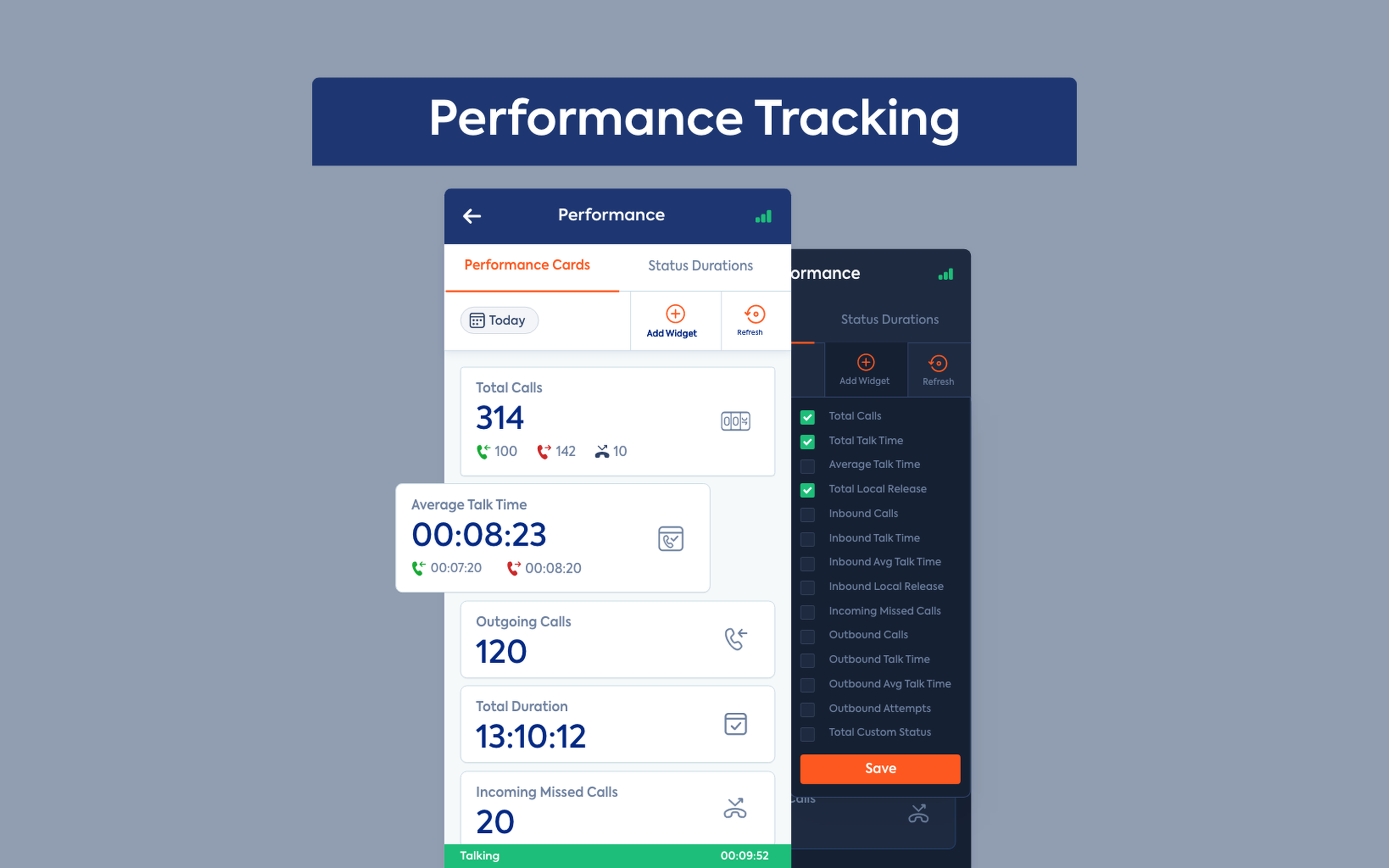
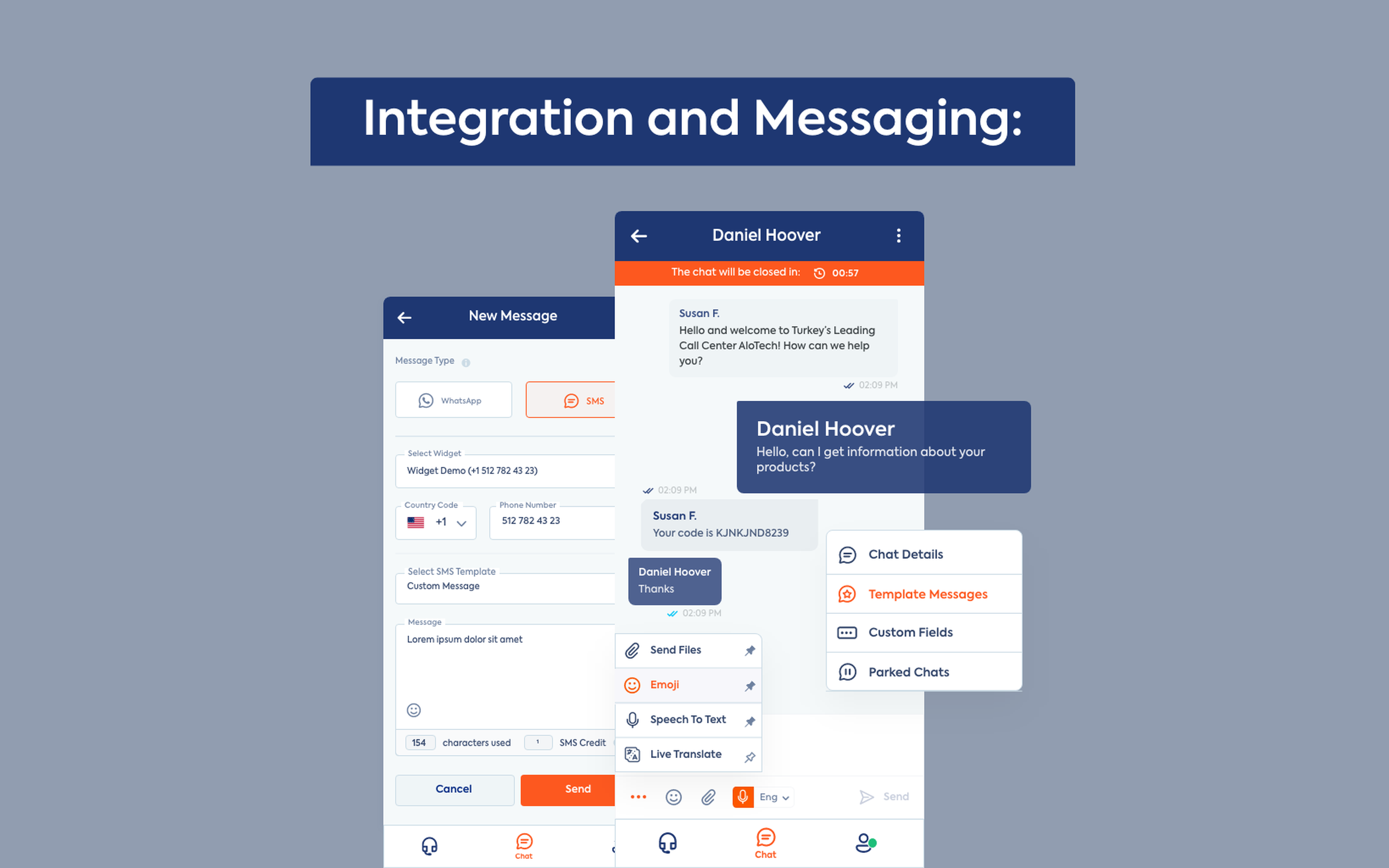
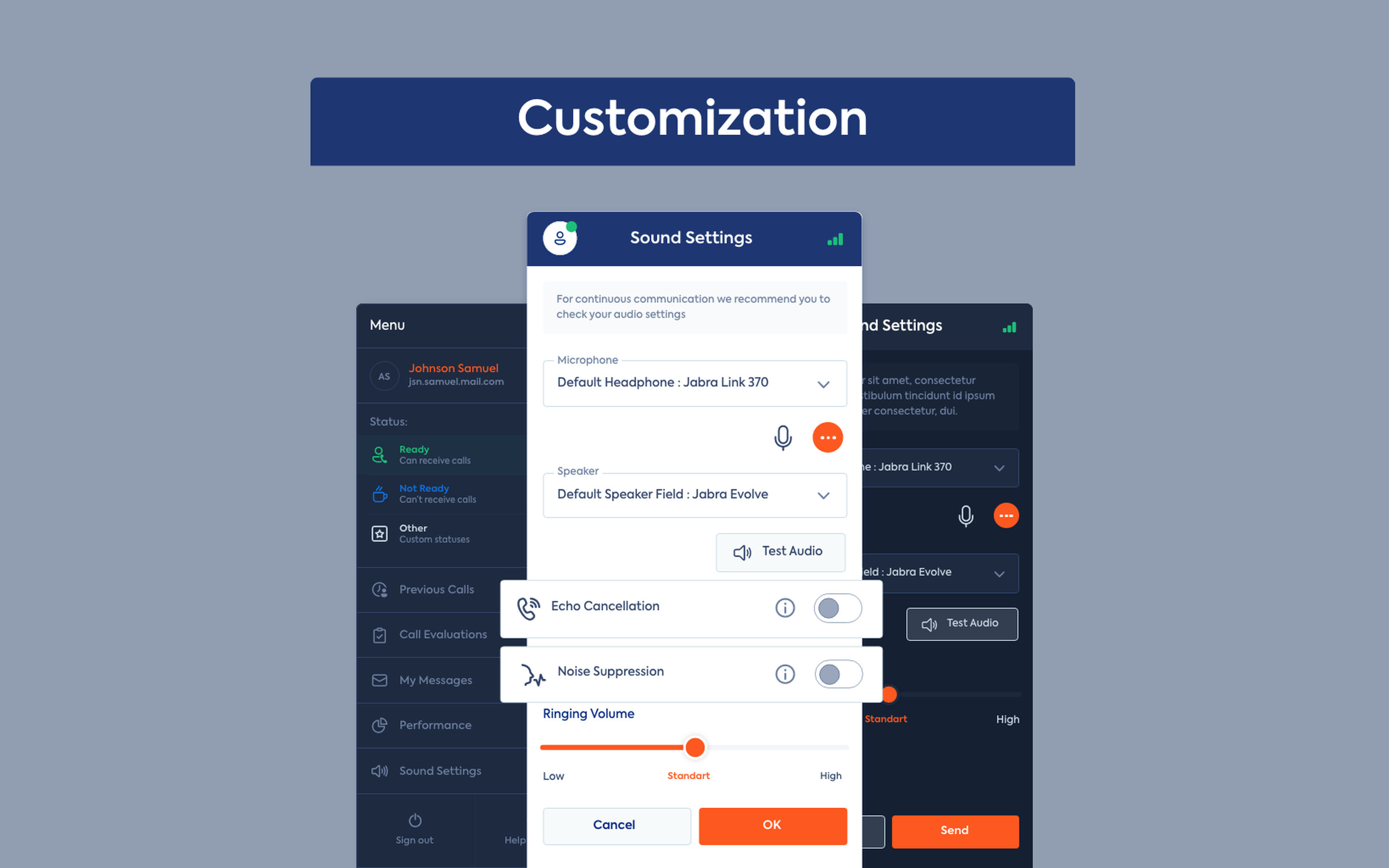
Seamlessly integrate your phone system with Pipedrive using Softphone CTI. Streamline your sales and support workflows by managing calls, messages, and performance directly within your CRM.
Key Features: • Easy Setup & Login: Quick authentication via Tenant URL and OTP verification for secure access. • Call Management: Make outbound calls with a built-in Keypad, handle inbound calls with instant caller pop-ups, and easily Mute, Hold, or End calls. • Call Transfer & Conference: Perform blind or consult transfers to team members and initiate multi-party conference calls directly. • Omnichannel Messaging: Receive and respond to WhatsApp and web chat messages from a single panel, with the ability to park chats for later follow-up. • Performance & Activity Tracking: Monitor call durations, track real-time agent metrics, and access detailed call history logs. • Hardware & Personalization: Configure audio devices, run instant sound tests, and switch between light and dark modes for an optimal workspace.
Empower your sales team with efficient calling, real-time context, and automated activity logging.

Quick access
Easily access AloTech Softphone CTI and their customized floating window anywhere in Pipedrive via the top bar.
Softphone
Locations:Top barPhone numbers
Handle incoming and outgoing calls, power dialing, call notes and outcomes natively within Pipedrive.
Follow these steps to install and set up Softphone CTI for Pipedrive:
Step 1: Install the App • Click "Install now" in Pipedrive Marketplace and grant permissions.
Step 2: Registration & Account Setup • Go to the Registration Page, enter details (Name, Email, Password, Language), and click "Sign Up". • Enter the email OTP to complete registration. • Contact your Operations Manager to activate your account.
Step 3: Configure Settings • AloTech Tenant: Enter your domain (e.g., yourtenant.alo-tech.com). • AloTech OAuth Client ID (Optional): Enter custom Client ID or leave blank for default. • Phone Prefix Mode: Select number sync format:
Do Not Change Numbers: Keeps original numbers.
Add Prefix to Pipedrive Numbers: Adds country/area prefixes.
Remove Prefix from Pipedrive Numbers: Strips prefixes. • Click "Save" to apply.
Step 4: Login to Softphone • Launch Softphone CTI in Pipedrive. • Enter your Tenant URL and log in with your email/password.
Step 5: Hardware & Getting Started • Select headset/mic in Settings, test audio, and set status to "Ready".
If you’re interested in this app, you might also like:


Use our powerful API to build awesome apps for either your company or for all Pipedrive users.
Build an app