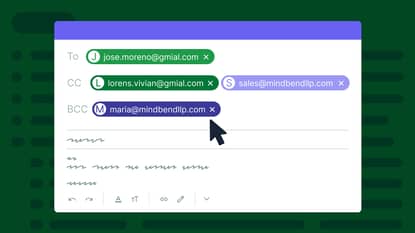

For small teams that rely on email to track deals, manage clients or maintain audit trails, auto Bcc connects everyday communication to the systems that drive business forward.
Without a built-in way to automatically Bcc outgoing emails, Gmail leaves SMBs at risk of lost data. However, with the right workarounds, you can automate this to keep CRMs, archives and collaboration workflows running smoothly.
In this guide, you’ll learn four practical hacks to set up automatic Bcc in Gmail. By the end, you’ll know exactly how to funnel copies of Gmail messages to CRMs like Pipedrive or archival accounts without manual admin.
Key takeaways from automatic Bcc in Gmail
Automatic Bcc bridges the gap between daily email activity and essential business systems, helping SMBs save time, reduce manual errors and stay organized.
Gmail lacks a native auto bcc feature, so to blind-copy every email, you must use a workaround: filters, admin rules, extensions or scripting.
Consider four options to choose a workaround that fits your workflows, security requirements and tech stack without needing an in-house IT team.
Pipedrive’s Smart Bcc ties emails directly to deals, helping small teams automatically capture email data in the CRM without the technical burden – try it free for 14 days.
What is automatic Bcc, and why does it matter for SMBs?
Automatic Bcc (blind carbon copy) is a way to automatically send a hidden copy of outgoing emails to a specified address to help small businesses centralize important email data without manual forwarding.
Bcc allows you to send a copy of an email to a third party without the primary recipient knowing. Only the Bcc recipient will see that they’re mentioned.
Relying on manual work and human memory to preserve important emails is not just inefficient, but also unreliable. For example, when a sales rep forgets to add the Bcc address for your customer relationship management (CRM) tool, that interaction will disappear from your company’s records.
When you automate this process, you can:
Eliminate human error and never miss an interaction
Boost your team’s efficiency by reducing manual data entry
Stay audit-ready with a complete trail of your communications
Here are some examples of how automatic Bcc can help different teams:
Team | Use case of automatic Bcc |
Sales | Logging sales emails and follow-ups in the CRM |
Keeping a full record of the audit trail in a common archive | |
Recording progress in the project management tool | |
Capturing customer interaction data and updating tickets | |
Updating candidate information in the Applicant Tracking System (ATS) |
Auto bcc keeps your important email data in sync with other systems (CRM, helpdesk, archives). It’s especially critical for small businesses that use email to track sales and need an automated audit trail.

Automatic Bcc in Gmail vs. other email clients
While competing email hosting providers like Outlook and Thunderbird offer native or easily configurable auto bcc options, Gmail requires external workarounds to achieve the same functionality.
Here’s how automatic Bcc works for each respective email provider:
Microsoft Outlook supports automatic Bcc in Outlook through simple VBA scripts. The option isn’t directly available in the standard “New Rule” wizard, but users can apply scripts to automatically Bcc themselves or a shared inbox.
Mozilla’s free email tool Thunderbird offers auto bcc natively, allowing users to configure multiple settings (e.g., one for “Cold Outreach”, one for “Deal Sent”). Simply go to Account Settings > Copies & Folders, then check the “Bcc these email addresses” box.
Gmail only supports auto bcc through Google Workspace admin controls, scripts or third-party tools. Without access to enterprise-level features or an internal IT team, SMBs must turn to creative solutions to automate Bcc in Gmail.
Let’s look at four solutions to automate Bcc in Gmail tailored for different business types and industries.
4 workarounds to set up automatic Bcc in Gmail
Since Gmail doesn’t offer built-in auto bcc, you can choose from different tactics, each offering different levels of control, scalability and simplicity depending on your SMB’s needs.
There is no “one size fits all” solution here. A solo consultant might be fine with a free extension, while a compliance-heavy brokerage firm might need an enterprise-level admin rule.
Consider your company’s workflows, tools and security requirements as you review the following four workarounds for auto Bcc in Gmail and how to set them up.
1. Create filters to route emails to your Gmail inbox
If your goal is to keep a centralized record in your own inbox, simply use the native Gmail settings to set up a filter, guaranteeing a copy of each outgoing email.
Creating filters works well for freelancers, consultants and solo entrepreneurs who want a lightweight way to track sent emails without relying on external tools.
To create a filter, go to Settings (gear icon in the top right) and click on “See all settings”. Head over to the “Filters and Blocked Addresses” tab and click on “Create a new filter”.
Enter your own email address in the “From” field:

Leave the “To” field blank to forward all of your outgoing emails. If you want to be specific, you can add multiple recipients here. You can also specify certain keywords (e.g., “proposal”, “offer”) or subject lines to customize the filter.
When you click “Create filter”, it will take you to a screen where you’ll see options for what to do with the emails:

Check “Apply the label:” and choose an existing label like “Sent Mail” (if you want to ensure they’re double-labeled) or “Create new label” to make one specifically for your auto bcc archive.
You could also check “Mark as read” if you don’t want these copies to clutter your unread count.
Make sure to check “Never send it to Spam” to ensure sent emails are forwarded to your inbox. Finally, click “Create filter”.
Example: A marketing consultant sets up a Gmail filter to forward all outgoing emails with the subject line “proposal” back to her own inbox. Forwarding these emails to herself gives the consultant a visual reminder to track follow-ups and manually log key conversations into her CRM when needed.
While this is a quick and free way to keep copies of your emails, this isn’t true Bcc. It only forwards the sent emails to your inbox as separate messages with ‘FWD’ markers. While useful for personal archiving, this doesn’t integrate directly with external systems like CRMs.
2. Configure Google Workspace admin settings
If your SMB must archive all employee emails for audit trails or legal reasons, Google Workspace admin rules provide a scalable, policy-driven Bcc solution – although it’s not customizable per user.
This method is ideal for financial services, legal, insurance and some healthcare and real estate companies.
Google Workspace offers a powerful Content Compliance rule that enforces auto bcc at the server level, invisible to the end user. This rule captures everything, including emails sent from desktop, mobile, tablets and even third-party apps connected to the account.
Here’s how to set up a new rule on Google Workspace Admin Console:
Pressing play on the video above will set a third-party cookie. Please read our cookie policy for more information.
To adjust the settings for auto bcc, follow these steps:
Under “Email messages to affect”, check “Outbound”
Under “Also deliver to”, check “Add more recipients” and enter the Bcc address
Save the rule
Once set up, all Gmail accounts in your organization get auto bcc without installing anything. It ensures company-wide archiving or CRM capture. Only admins can do this, and only with higher-tier plans (Enterprise or Business Plus).
Example: A financial services firm uses Google’s admin console to auto bcc all outbound employee emails to a secure archive. This setup ensures it meets industry regulations without relying on individual employees to manage message logging manually.
You can’t easily target specific emails or dynamic recipients; it’s a one-size rule for the whole domain. In other words, the rule is useful for medium to large organizations needing uniform compliance, but not for single users or flexible rules.
3. Install a browser extension
Browser extensions are ideal for desktop-first teams that prioritize ease of use and customizable rules, but you should weigh the trade-offs around mobile coverage and data access before committing.
Sales, real estate and client services teams often rely on browser extensions to automatically log Gmail conversations into their CRM, without technical setup or admin access.
Chrome extensions like Auto Bcc for Gmail and cloudHQ’s Auto Bcc let you create custom rules for Bcc’ing specific addresses based on sender or recipient. These add-ons run in your browser, so setup is primarily point-and-click.
Simply install the extension from the Chrome Web Store, click the icon in Gmail and define your Bcc rules. Here’s how to do that with cloudHQ’s Auto Bcc extension:
Pressing play on the video above will set a third-party cookie. Please read our cookie policy for more information.
You can tailor rules per account or email address – no admin access, scripts or technical skills required.
Example: A small B2B sales team uses a Chrome extension to automatically Bcc all outbound emails to their CRM’s Bcc address. This way, the team instantly logs every quote, follow-up and deal conversation sent from Gmail to the right contact or sales pipeline stage.
There’s no equivalent extension for Gmail’s mobile apps or other browsers. They only work when you’re using a browser on your computer. For example, if you’re at a lunch meeting and reply to a client via the Gmail app on your iPhone, that email is not captured.
Also, using a third-party extension means granting “Read/Write” permissions to your inbox, so make sure to evaluate security requirements.
4. Run a Google Apps Script
For growing SMBs that need a scalable auto bcc solution that works across devices, Google Apps Scripts run reliably in the background and adapt to custom needs.
Scripts are especially useful for startups, tech-enabled teams or SMBs with light in-house IT support who need more control and flexibility than browser-based tools allow.
Google Apps Scripts run a code on the server to scan your Sent folder and copy your emails to your Bcc address. Many non-technical users find cutting and pasting a template and tweaking the address easy. Plus, it works on all devices since it runs server-side.
Here’s a simple script you can use:
function autoBcc() {
// Find recentsent emails (customize as needed)
var threads = GmailApp.search(‘from:me newer_than:1d’);
threads.forEach(function(thread) {
var msg = thread.getMessages()[0];
if (!msg.isDraft()) {
// Forward the message to your Bcc address
msg.forward(‘[email protected]’);
}
});
}
To set up the script, go to script.google.com and click on “New Project”. Here’s what you’ll see on the next screen:

Paste your script into the code window and click on the clock icon (Triggers) in the left sidebar menu.
Add a new trigger with the following settings: Run autoBcc function, Time-driven, Minutes timer, Every 10 minutes.
Because Gmail doesn’t have an “on send” trigger, this will create a time-based trigger to search outgoing emails from the Gmail account with which you set up the script. It’ll then automatically forward matching emails to your Bcc recipient.
You can customize the logic and add labels or filters for processed emails. It even works if you use multiple Gmail accounts (you’d run a script for each account).
Example: A healthcare startup creates a custom script to auto bcc its customer service emails to the helpdesk platform. The script captures and logs every response to customers, seamlessly updating customer data in the ticketing system.
Unlike extensions, this runs on Google’s servers, so scripts may have quotas or small delays. Additionally, because it uses forwarding instead of true Bcc, forwarded emails will show “FWD” lines and slightly different headers.
If you’re using Pipedrive as your CRM, here’s how you can integrate your auto bcc’ed emails into the platform.
How to link your auto bcc emails to Pipedrive
Eliminate manual email logging by using your Pipedrive Smart Bcc address as the destination for all auto bcc’ed Gmail messages.
To capture and integrate your emails into your CRM, you need the right address. Most CRMs, including Pipedrive, offer special Bcc addresses. In Pipedrive, this is called Smart Bcc.
Once you add Smart BCC to your auto bcc rule, every email you send will appear in Pipedrive’s CRM under the right contact, lead or deal thread.
To set up this function, go to Pipedrive Settings > Email Sync > Smart Bcc and copy the address:

Insert the address into your Gmail automatic Bcc rule or script. Now, all sent emails or replies will flow into Pipedrive without you lifting a finger.
Pipedrive in action: Social media company Social Burro started as a one-person business looking to streamline business development. Thanks to Pipedrive’s Smart Bcc, Social Burro automatically updates contacts and deal progress with email data. This efficiency translated into almost tripling its year-on-year revenue.
According to founder Frank Kecseti:
“Once I found Smart Bcc, I was addicted to it. Whenever I reach out to a prospect or anything that could lead to a business engagement, I always blind copy that email address. I can tie it to a deal or a contact and it helps me keep track of everything”.
Pipedrive offers a full suite of email tools for SMBs to manage, personalize and automate email outreach from one place.
For example, you can connect your Gmail or Outlook inbox directly to the CRM with email sync. To set it up, go to Settings > Email sync and click “Add new account”:

Setting up email sync allows you to send and receive emails right inside Pipedrive, so you can manage your communication without switching tabs.
For SMBs juggling multiple leads or client accounts, it’s a simple way to stay organized and reduce manual inbox work. You won’t have to copy and paste, forward threads or worry about missing a message again.
Heat up your cold emails with 25 customizable email templates
By combining Gmail auto bcc workarounds with Pipedrive’s Smart Bcc and email tools, even lean SMB teams can stay on top of client communications without manual admin.
Final thoughts
Although Gmail lacks a one-click auto bcc, you can use workarounds to transform your email history into a centralized, searchable asset that drives revenue and accountability.
Whether for sales tracking, customer support or legal backup, auto bcc ensures your SMB’s email communications become verifiable data, not lost pieces of correspondence.
Ready to tie your email conversations to your sales pipeline? Try Pipedrive’s Smart Bcc in action – start your free 14-day trial and see how easily emails sync with your deals.